Mirage
At a glance
- Role
- Product design intern
- Team
- My design manager
- Designers
- PMs and engineers
- Leadership, including the CEO
- Timeline
- Jul to Sep 2026, New York
- Platforms
- Captions on iOS, Android, and web
- The marketing site
I owned the 0→1 design of Clips, the AI feature in Captions that turns one long video into 20 to 30 ready-to-post shorts from a single prompt. It shipped and launched publicly, and it’s where most of my summer went.
Around it, I restructured the video editor, redesigned the AI chatbot with annotations, designed reusable components for iOS, and lifted web sign-ups by 25%. I closed the summer with a raw video editor concept that I presented to the whole company.
I prototyped interactions directly in code, AI ones included, and engineers often asked me to open the pull requests myself, so my prototypes went straight into production. Designing AI tools is the work I love most.
Context
Captions was moving from a toolbox of features to an AI that does the edit
Captions is Mirage’s AI video app, used by 20M+ creators on iOS, Android, and web. In 2026 it was shifting from editing tools people operate to an AI that makes the edit for them.
That shift opens a new design problem. If the AI does most of the work, people still need a way to say what they want, fix what it got wrong, and keep what they love. Each of my projects tackled one piece of that.
The question behind every project
When AI does the editing, where should people steer?
Problem
An hour of footage, and no fast way to find the shorts inside it
Shipped
Creators with long videos, like podcasts, streams, and webinars, need shorts to promote them, pull highlights, or stay active on TikTok and Reels. Cutting an hour of footage into good shorts by hand is slow, and guessing which moments will land is even harder.
I was the sole designer on Clips and owned it from the first flow to launch.
Solution
One prompt turns a long video into 20 to 30 ranked clips
Reprompting adds a new group instead of replacing the last one, and erasing makes a new clip beside the original.
Key decisions
Reprompting adds, never replaces
Each prompt becomes its own group of clips on the results page. A new prompt adds a fresh set without touching the last one, so people can try a different angle without losing a clip they liked.
A second prompt starts its own group. The first one stays put. Ranked, not just listed
Every row shows a thumbnail, Viral Score, title, and duration. Scanning 30 clips becomes a quick ranking job instead of watching each one.
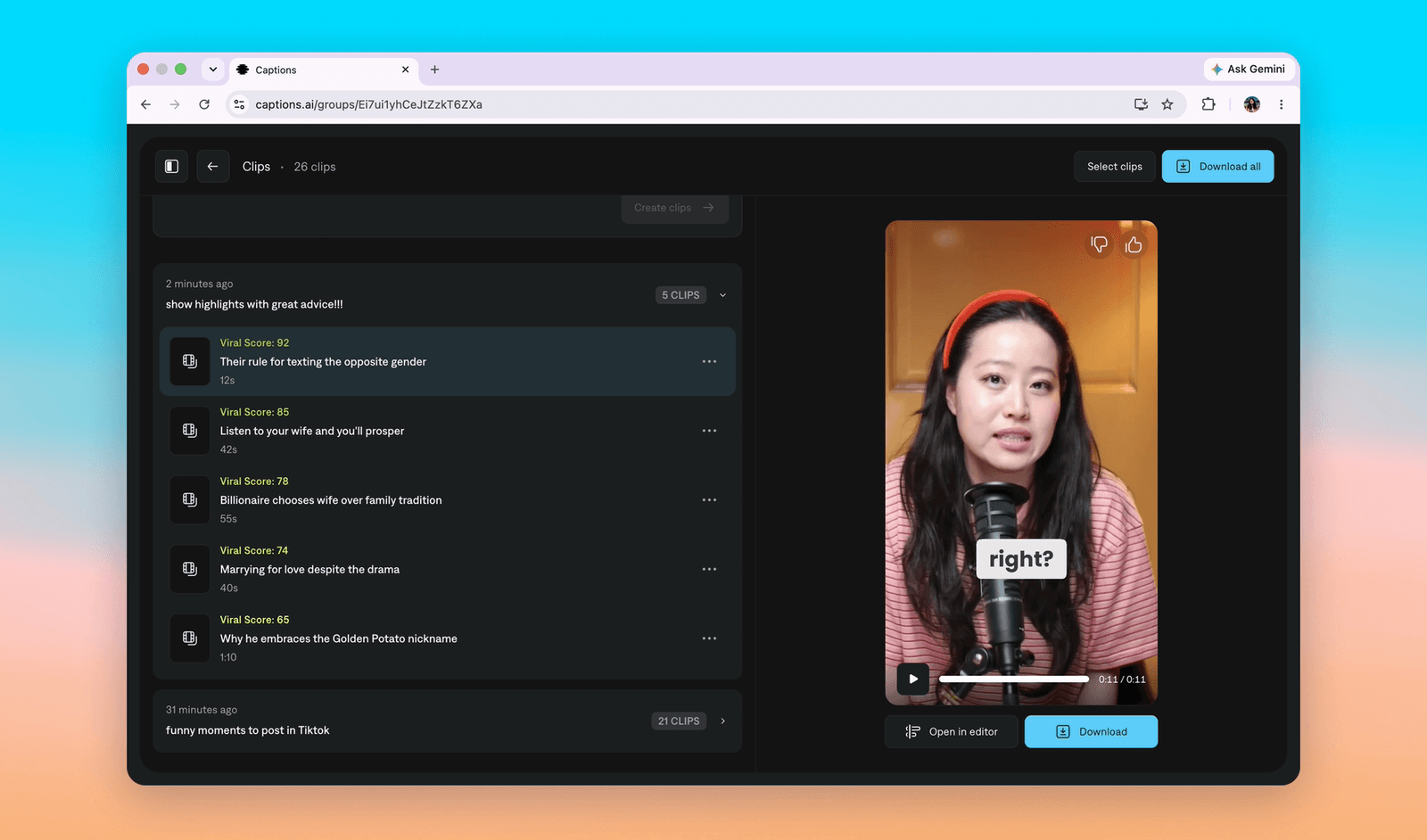
Each group is ranked by Viral Score, highest first. Reuse first, new only when it’s better
I built Clips from existing design system components wherever I could, so it feels like the rest of Captions. I made new ones only where they clearly made the experience better, about 6 in total, and added them back to the system.
Loading state
The wait shows your best moments being found
Turning an hour of footage into 20 to 30 clips takes time. Instead of a spinner, the input video sits blurred and frosted behind a loading ring, while a line sweeps along the player’s timeline and highlights each stretch it picks for a clip.
Erase original edits
A slow, expensive action that still feels safe to use
Shipped
Many uploads already have captions and effects baked in, so Captions’ edits stacked on top of them. Erase original edits strips those first. The hard part was making a slow, expensive action feel safe and easy to find.
I tried three placements, each paired with a dismissible “Original edits detected” coach mark. The final design is an action pill on the top left of the video, sitting right on the thing it changes.
Explorations
Icon rail
A vertical rail beside the player.
Labeled button
A button above the player.
Segmented toggle
A toggle on the player itself.
Action pill
Shipped: on the video it changes.
Key decisions
Run it after results, not before
Inputs can be an hour long, and erasing costs several times more credits than creating a project. Running it on finished clips means people only spend credits on clips they actually want.
Per clip, not per group
People choose exactly which clips to clean instead of erasing a whole prompt group at once.
Show the cost before the commitment
Tapping the pill opens a confirmation with the credit cost. While it runs, the video is replaced by a progress ring with a percent.
Mark the erased clip without another badge
Engineering locked that erasing always creates a separate clip, so the question became how to mark it. A plain dot felt too vague. The player header carries position and state together, like “2 of 35 · Erased”, and list rows read “23s · Erased”, duration first, so every row scans the same way.
One verb everywhere
Mocks had drifted between “Cleaned”, “Removing original captions”, and “Erased”. I unified them to Erase original edits, Erasing original edits, and Erased.
Outcome
Launched to every Captions creator as the newest mode
Clips shipped and launched publicly as the newest mode in Captions, tagged NEW in the home screen’s mode menu beside Edit, Avatar, and Translate.
- Creators it’s available to
- 20M+
- Views on the launch post
- 69.6K
- Ranked clips from one prompt
- 20 to 30
- New components, added back to the design system
- ~6
Video editor
Agreeing on who the editor is for settled where its panels go
Shipped
The timeline sat at the bottom, the AI chat on the left, and a properties panel popped up whenever you selected a primitive. Another floating panel listed every primitive, and some panels nested inside others. At times four floating panels were open at once, covering the timeline people came to edit.
Underneath was a product question. The team kept adding deep, Premiere-level properties, while AI Edit was built for casual editors who mostly chat.
I put together a presentation with my point of view on where AI Edit sits between casual and pro editing, and led the conversation with the CEO, a PM, and designers. We set the direction together. That direction made the panel problem impossible to ignore, and the restructure came straight out of it.
Key decisions
Docked by default, pull out to float
The team had gone back and forth on fixed versus floating panels for a long time, because the right answer depends on who the editor is for. Once we agreed on that, panels became fixed by default, and you pull one out when you want it floating.
Chat docks on the left, properties on the right, the timeline stays clear. AI chat on the left, full height
It spans the whole left side and carries the project title with it, instead of tucking under a title that never moved.
An always-visible timeline over a wide one
Two docked side panels leave a narrower timeline in the middle. We chose a timeline that’s always visible over a wide one that kept getting buried.
Controls where people look for them
Undo, redo, and full screen moved from below settings to the top bar beside the project title. Settings got its own spot near the bottom, close to the timeline, instead of sitting with the primitives.
AI chatbot
Point at the video instead of describing it
Shipped
Typing “make that smaller” never tells the AI which thing you mean. I redesigned the AI chatbot with annotations, so people can mark the exact thing or moment they want changed.
A mode you step into and out of
A pen button turns annotation mode on and an X turns it off, so marking up the video never gets in the way of watching it. One hint covers everything: “Drag to draw or click to comment.”
Lasso a face, leave a note, and it lands in chat. Mark the frame or the timeline
Drag on the video to lasso the thing you mean, or drag on the timeline to mark a stretch of time. Click anywhere to leave a comment instead.
Every note is pinned to a moment
Each comment opens a small card stamped with its exact time, like 0:01.19, that asks one thing: “What do you want to edit?”
Send now, or queue and batch
Send a note right away, or add it to the queue and batch several. Each lands in chat as a card with the frame and your outline, a timestamp chip, a Mark chip, and your words, and the AI resolves the queue together.
Replies that show the work
Instead of a silent wait, replies show what the AI is doing as it edits. People can see their notes landed and know what changed before they look at the video.
Each reply lists its steps as the AI works. Sped up 4×.
Prompt to Video
Prompt to Video found a better home inside the chatbot
Sunset
I redesigned Prompt to Video for its relaunch, adding multi-media referencing so people could point the AI at their own images, videos, and audio. It launched, and generations rose 30%.
Then the team pulled it back to rethink it. Captions is an AI editor, and every other mode, from Clips to Translate, is a way to edit a video. Creating from a blank prompt felt like a different product, so it moved into the chatbot, where people already talk to the AI.
Components
Save a group once, reuse it in any project
Shipped
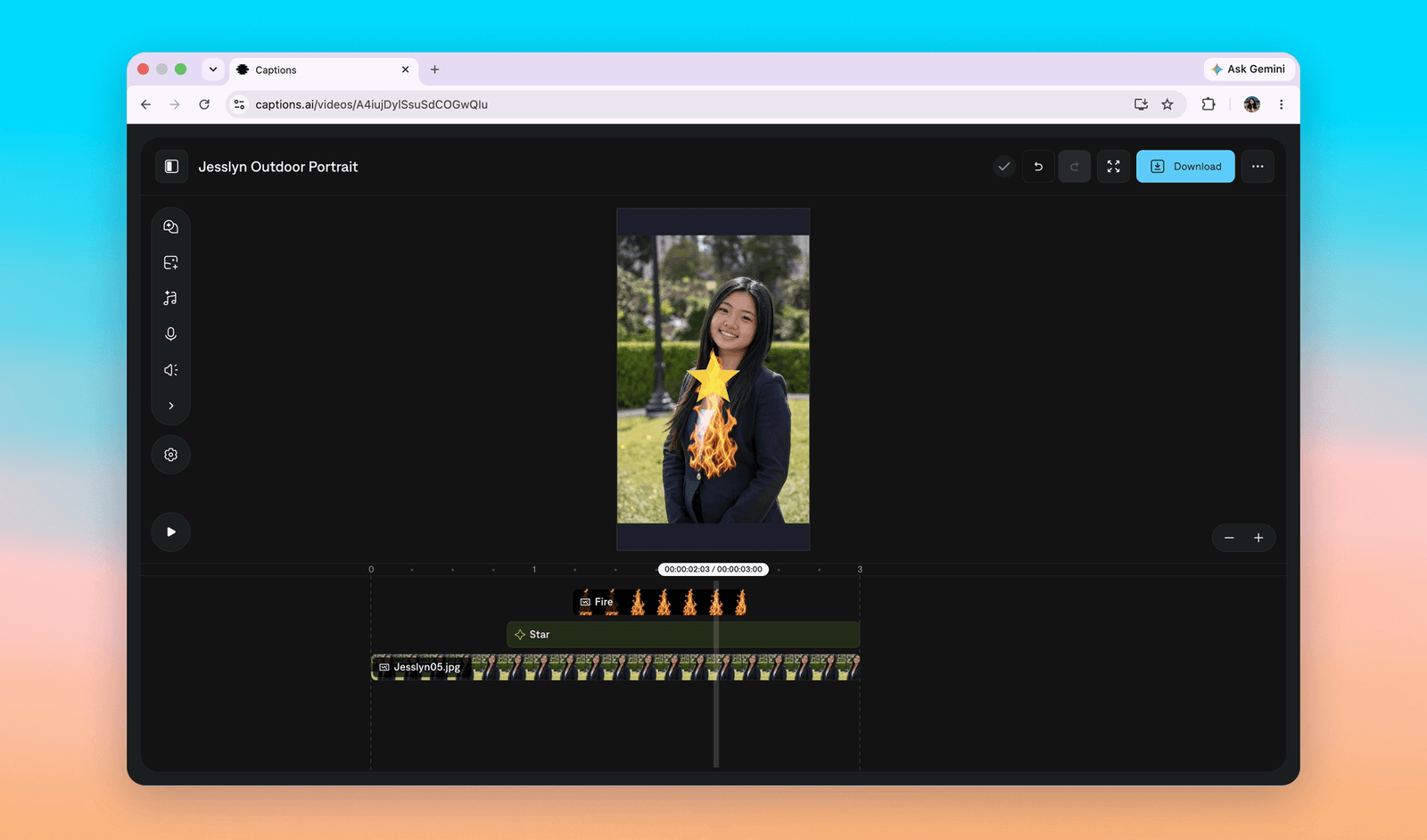
In the editor, people can group elements together. I designed the iOS flow that turns a saved group into a component, a reusable primitive that works in any project. The web version already existed, and I adapted it for a phone screen instead of shrinking it.
Key decisions
Name before save
A group has to be named before it saves, so the library stays readable instead of filling up with untitled groups.
Copies, not linked instances
Applying a component drops in a snapshot that becomes a normal group. Editing one video never changes another, and the library stays a simple convenience layer.
A library you can find things in
Filter chips for Made by you, Made by Captions, Within your style, Favorites, and Recently used, plus search and a 3-column grid. Rename, Add to favorites, and Remove moved into an overflow menu to keep the grid calm.
Swap in place
A swap flow with an “Adapt to my video” toggle lets people try a component on their own footage before applying it.
Raw video editor
One prompt box for everything, down to the footage itself
Concept
My final project asked what editing looks like when AI can change the footage itself, instead of layering effects on top. I designed and prototyped it, then presented it at a company all hands with the CEO in the room.
Three layers you can change
Scene
Edit the video scene by scene.
Video
Change frames, interactions, and the script, or add a new character.
Components
Every object in the video is labeled, so you hover it and adjust its presence.
How I got there
I explored a lot before landing here, including an energy curve you drag to reshape pacing, a creator identity system, and a multi-avatar directing editor. Each one taught me something, then failed a bar that kept getting sharper.
Work for any video
Vlogs, hauls, unboxings, and podcasts, not just one genre.
Stay open-ended
No menu of toggles that tries to predict every subject.
Make editing more intuitive
Playful only where it makes the tool easier to use.
The question that unlocked it
Why have many features with many prompt boxes when you could have one prompt box for everything?
Reflection
Strategy is design work too.
The editor restructure only worked because we first agreed on who the editor was for.
Constraints sharpen the design
When engineering locked that erasing makes a new clip, I lost my favorite solution and found a clearer one in the player header and list rows.
Good work can change shape
Prompt to Video didn’t last as its own mode, but its ideas live on in the chatbot. I learned to care more about the idea than the screen.
Kill ideas early and kindly
My final project went through many directions before the one I loved, and each one I let go made the bar clearer.
Built with
- Product
- Meera Parat
- Engineering
- Ben Donohue, John Roberts, Danny Oh, Aditi Sundararaman
- Managers
- Midas Kwant, Chelsea Cheng